 Freezon
What to Write on a Concert Sign: Short Ideas That Fit on a Phone
Short concert sign ideas and simple layout tips for clear, readable messages on iPhone and iPad.
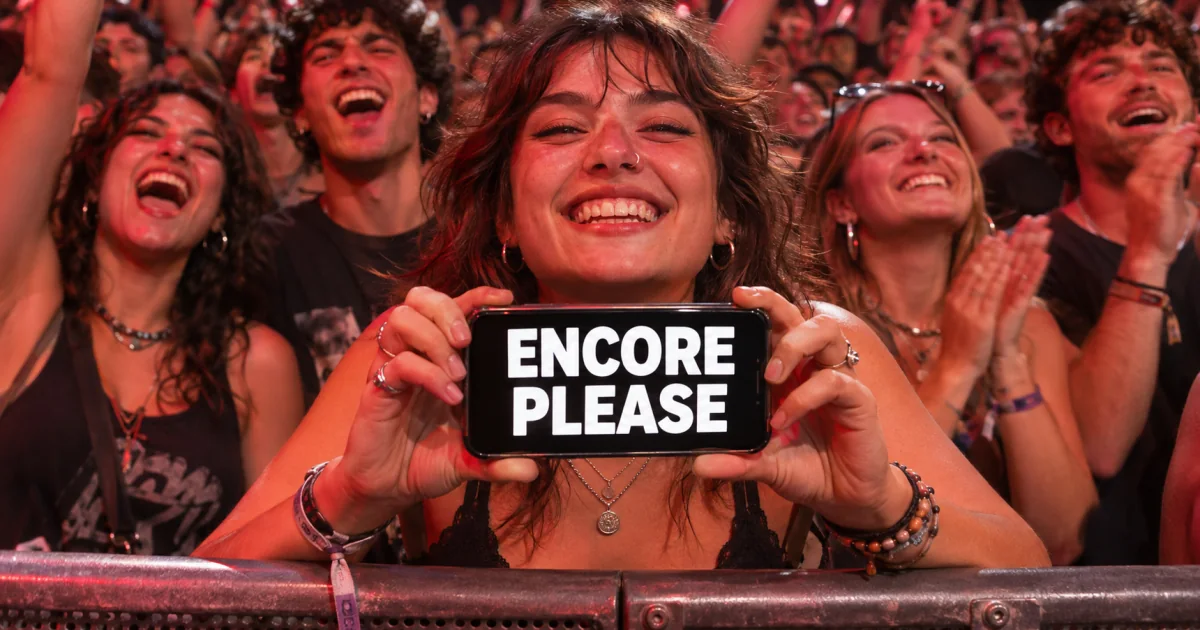
The clearest message to show on a screen at a concert is two to four everyday words, or two to three words with one simple emoji, shown as large static text so it reads at a glance. Long sentences shrink letters on a small screen, whereas concise, high-contrast wording keeps every word sharp and readable.
Cheering lines for loud moments
When energy peaks, punchy reactions capture the mood without crowding your screen. Pick a straightforward cheer that feels natural in the room:
- LET'S GO! 🔥
- BEST NIGHT EVER
- SO GOOD LIVE
- SING IT LOUD
- PURE MAGIC ✨
Appreciation notes
Warm, direct phrases express gratitude better than a long paragraph. These brief lines keep the message personal and easy to read:
- THANK YOU ❤️
- PROUD OF YOU
- WORTH THE TRIP
- LOVE YOUR MUSIC
- FOREVER A FAN
Encore and song calls
As the main set wraps up, short calls communicate your wish in a split second. Keep the request to a few familiar words:
- ENCORE PLEASE
- ONE MORE SONG
- NOT READY TO GO
- PLAY IT AGAIN
Friendly gesture prompts
Simple, light-hearted prompts make a hand signal or wave request obvious without cluttering your screen. Choose one clear visual cue:
- HEART HANDS? 🫶
- PEACE SIGN? ✌️
- WAVE THIS WAY 👋
- THUMBS UP? 👍
One-line iPhone vs. landscape iPad layout
Screen size changes how the same phrase fits on your device. Using "ENCORE PLEASE" as an example, a one-line iPhone sign keeps both words on a single row so the message stays unified on a compact screen. On a landscape iPad, the larger canvas lets you run "ENCORE PLEASE" across one wide line or stack "ENCORE" above "PLEASE" on two static lines when the layout fits, giving each word room to appear larger.
Quick readability check
Before you raise your device, check how the sign looks at arm's length. Four simple checks keep your wording clear:
- Length: Aim for two to four short words so the text fills the screen.
- Motion: Use large static text instead of horizontal or vertical scrolling so a short message can be understood at a glance.
- Contrast: Pair contrasting foreground and background colors, and test the free Neon text effect to make sure every letter stands out.
- Emoji: Add one emoji at most so it does not shrink your words.
Setting up Freezon Banner
Once you pick a phrase for the moment, type your text and optional emoji straight into “Freezon Banner” on iPhone or iPad. The examples above are suggestions rather than built-in templates, and core creation and display work offline so your message stays ready without an internet connection.
Choose static fullscreen on one or multiple lines if the layout fits, and pick automatic or adjustable text size. Customize foreground and background colors, and try the free Neon text effect if you want that look. Venue and event device policies vary, so simply use your display where allowed.
