 Freezon
How to Make a Hand-Drawn Birthday LED Sign on iPhone and iPad
Learn how to craft a vibrant, glowing birthday LED sign in Freezon Banner for iPhone and iPad using free drawing tools, borders, and the Neon effect.
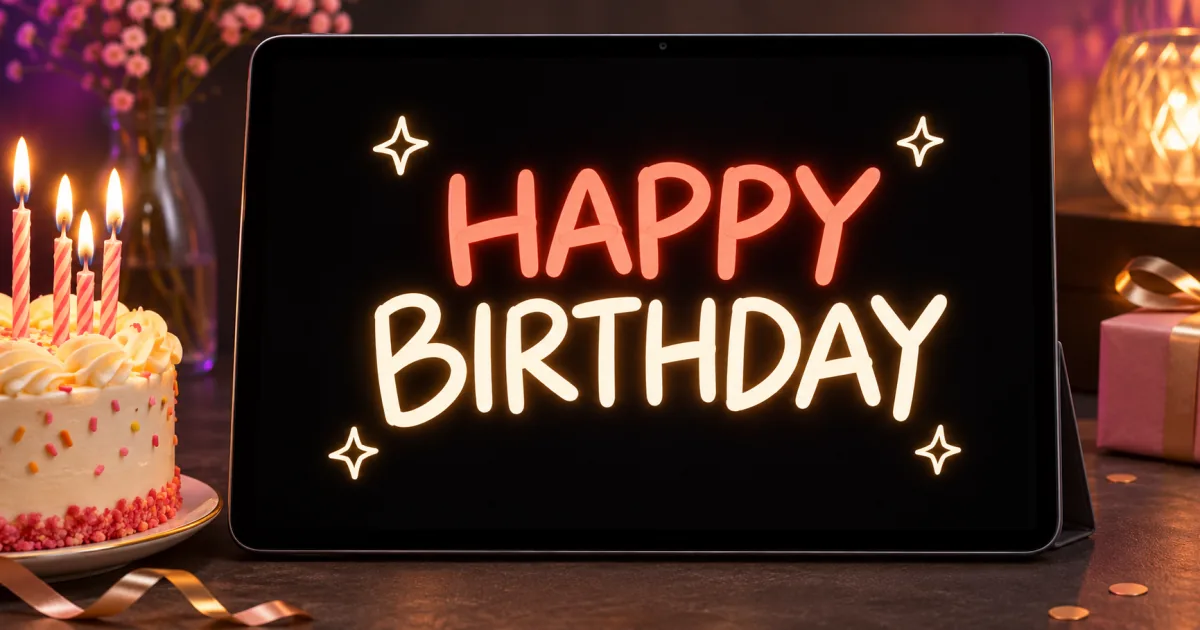
You can create a vibrant birthday greeting on your iPhone or iPad by sketching your message onto a dark canvas with free pen tools, applying the Neon effect for a bright glow, and showing the design full screen. You can draw with a finger on your iPhone or iPad, or sketch with an Apple Pencil on a compatible iPad.
When the lights dim and the birthday cake is brought into the room, holding up your personalized glowing sign adds an instant festive touch to the celebration.
Choosing Between Landscape and Portrait Layouts
Decide how you will hold or prop your device before starting your canvas.
Full-screen display preserves your canvas aspect ratio, so keep all lettering well within the borders to prevent unintended cropping.
- Landscape orientation works best for resting your iPad on a table near the cake or holding your phone horizontally with two hands. A two-line layout fits naturally here: "ALEX" commands the top, "MAKE A WISH" fills the bottom, and ample room remains on the sides for decorative stars or hearts.
- Portrait orientation is ideal if you plan to carry your device upright like a handheld beacon. Because vertical space is narrower, plan for tighter letter spacing on the longer second line.
Starting with a Blank Canvas or Free Template
Open the Drawing workspace in “Freezon Banner” to set up your backdrop.
- Blank Canvas: Select a dark background—such as deep black or midnight navy—so bright handwriting pops dramatically in low-lit rooms.
- Free Templates: Freezon Banner includes free decorative borders like Star Corners and Heart Surround. Select the artwork-only option to begin without preset greeting text. If a template does load with sample words, remember they are editable drawn strokes rather than a fixed text field; simply wipe them away with the eraser or undo button while keeping the border framing intact.
Drawing and Refining the Two-Line Greeting
Choose the free Solid Pen or Pencil, select a vivid neon hue like electric yellow, cyan, or hot pink, and adjust the line width for bold readability.
If a line looks uneven, tap Undo to retry immediately. Use the Eraser tool to refine letter edges or clean up overlapping strokes, and use Redo if you remove something by mistake.
- Top Line: Hand-draw "ALEX" in large, centered capital letters across the upper half of the canvas.
- Bottom Line: Write "MAKE A WISH" underneath, sizing the letters slightly smaller to balance the composition.
- Accents: Draw small stars, dots, or hearts in the surrounding empty areas.
Drawing with Fingers vs. Apple Pencil Precision
Freezon Banner allows finger drawing on both iPhone and iPad, making it easy to create a sign on short notice. Finger sketching feels natural and is well suited for bold block letters and casual greetings.
On a compatible iPad, pairing an Apple Pencil unlocks finer control. The Pencil's sharp precision helps you balance letter kerning, maintain uniform heights across "MAKE A WISH", taper star points cleanly, and erase tight spaces inside closed letters without smudging adjacent strokes.
Applying the Free Whole-Canvas Neon Effect
After completing your lettering and decorative borders, transform your flat sketch into an illuminated digital sign. Freezon Banner includes both standard rendering and a free whole-canvas Neon effect.
Open the effects menu and select the Neon effect. This instantly casts an electric, luminous glow across every stroke on the screen. Against the dark background, your bright handwriting and stars will look like genuine neon tubing glowing in the dark.
Screenshots show the English interface. The app supports multiple languages.
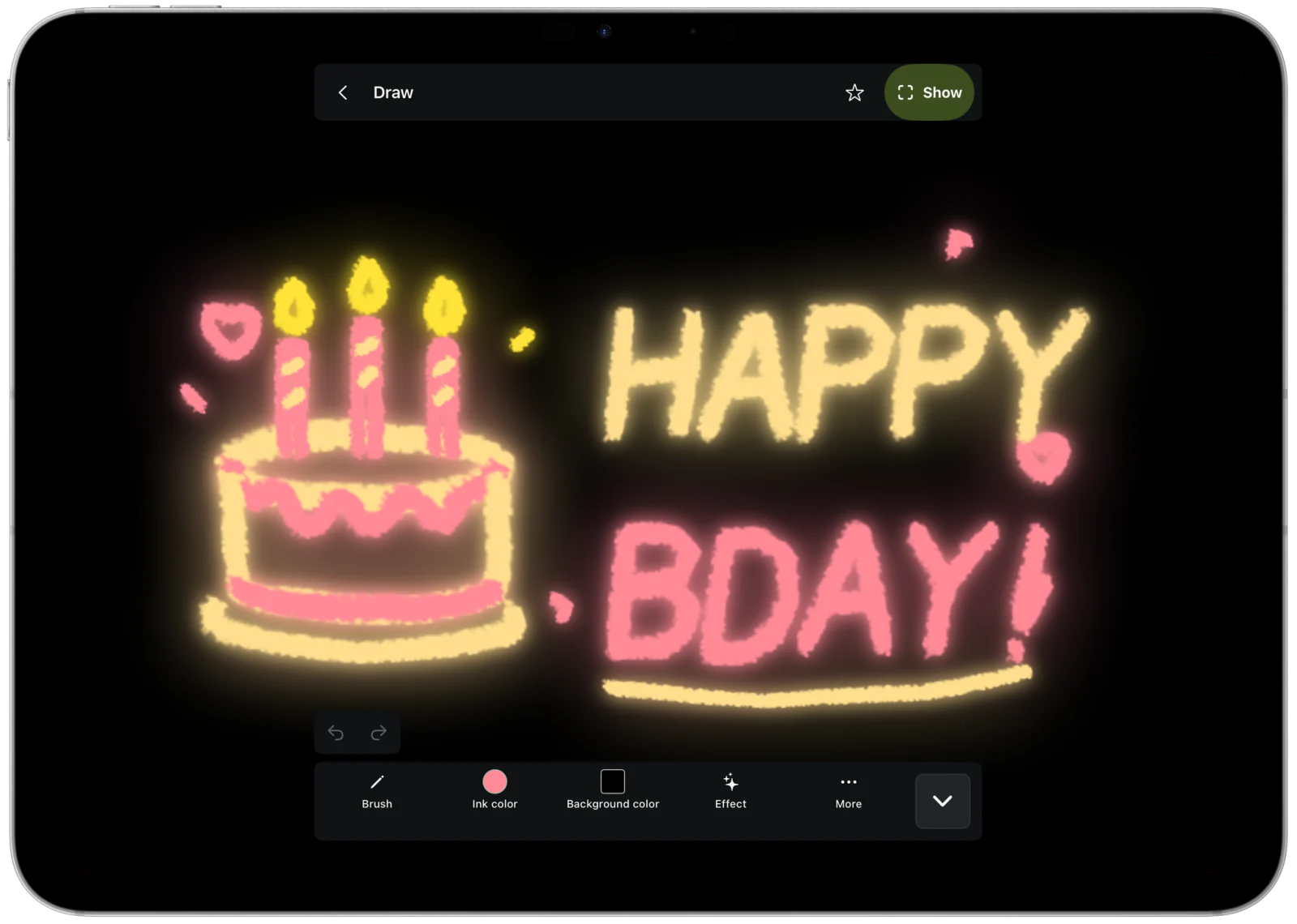
Presenting at the Cake Moment and Saving Favorites
When it is time to sing and present the birthday cake, switch Freezon Banner to full-screen mode. This hides toolbars and menus, showcasing your sign edge-to-edge while preserving the canvas aspect ratio.
Hold the screen up high or prop it beside the cake so the guest of honor can see their glowing greeting clearly. After the celebration, save your finished artwork as a favorite directly on the device so you can recall it anytime for photos or future parties.
