 Freezon
How to Back Up and Transfer Your Private Photos to a New iPhone
Back up and transfer your private photos to a new iPhone by generating an encrypted backup in Freezon and restoring it with your security recovery code.
To back up and transfer your private photos to a new iPhone, generate an encrypted backup in “Freezon” on your current device, keep the matching security recovery code, and restore the backup during album setup on your new phone. Freezon operates as an on-device encrypted photo vault for iPhone and iPad, keeping your media protected locally under your own control rather than uploading it to external servers or synchronizing albums across devices in the background.
Whether you are preparing to switch to a new iPhone today or choosing a private photo vault that ensures straightforward data migration in the future, Freezon’s backup workflow provides full ownership over your media. By managing migration through portable, encrypted backup files, you can transition your library smoothly to a new device while maintaining complete privacy.
Two Things to Prepare Before You Begin
Before starting the migration process, make sure you have two items ready:
If you use both a Daily album and a Private album in Freezon, treat them as separate vaults. Each album maintains its own independent backup file and corresponding recovery code.
- An accessible backup file (.pvb): This encrypted archive contains your photos and videos. You will save it to a location that your new device can reach through the system Files app, such as a folder in iCloud Drive.
- The matching security recovery code: The album’s matching security recovery code is required to unlock and restore that archive. Keep this code stored securely in a password manager or written record.
Creating and Saving the Backup
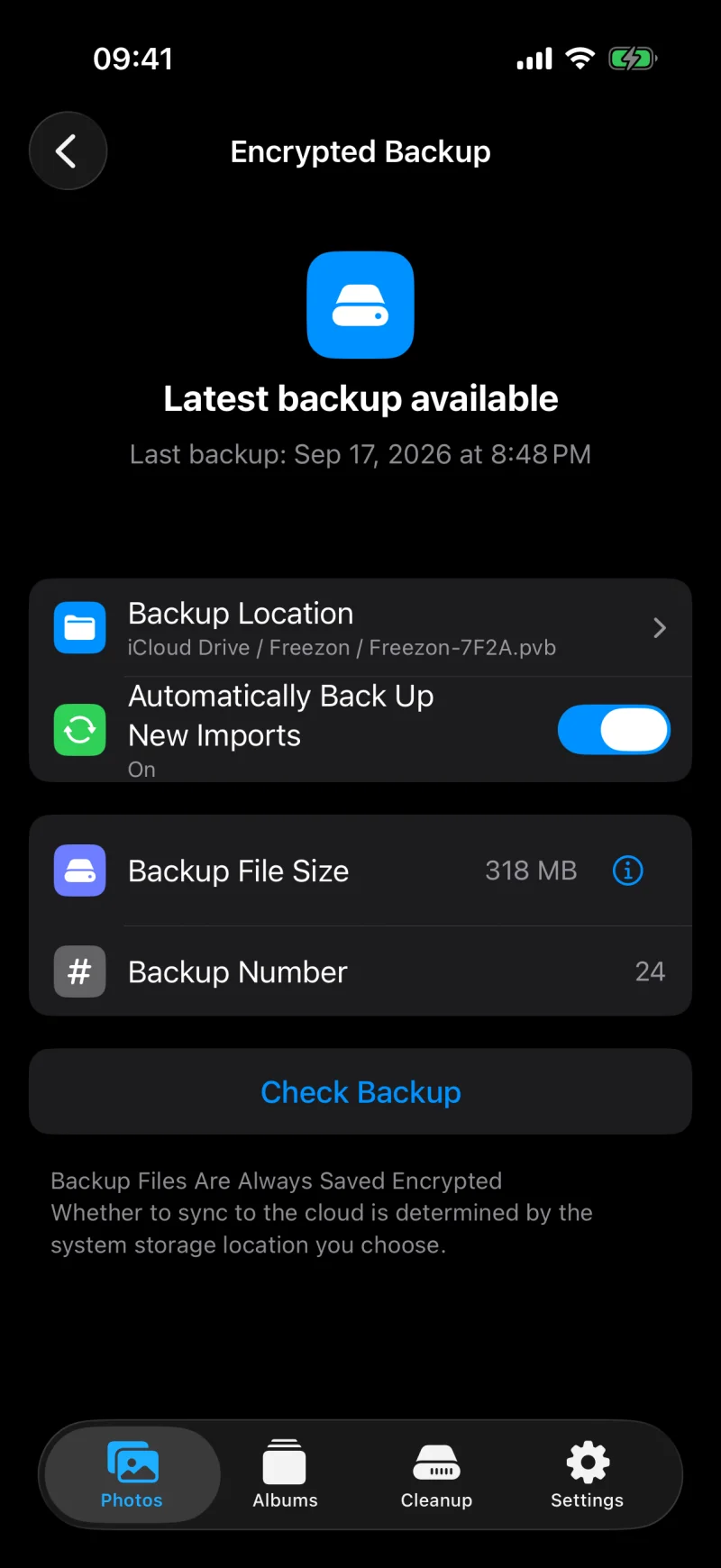
To create your backup on your current iPhone or iPad, open Freezon and navigate into the album you plan to migrate. Open the encrypted backup feature within that album, and Freezon will prompt you to choose an export location using the system Files interface.
Choose a directory that your new device can readily access, such as a designated folder in iCloud Drive. Storing your .pvb file in iCloud Drive makes the archive accessible across your devices through the Files app. It helps to understand the distinction between file storage and album syncing: iCloud Drive simply holds and transfers the static .pvb file, whereas Freezon does not run automatic cloud synchronization for your albums.
Remain inside Freezon until the app confirms that the backup is complete. Once the process finishes, make sure you have the album’s matching security recovery code. Record this code accurately and keep it on hand for setting up your new device.
Restoring Your Photos on Your New iPhone
When your new iPhone is ready, complete the restoration using the following steps:
- Confirm file availability in Files: Open the system Files app on your new iPhone and navigate to your selected backup folder, such as your iCloud Drive directory. Confirm that the .pvb file is visible, fully downloaded, and accessible.
- Start album setup in Freezon: Open Freezon on the new iPhone. During initial album configuration, choose the option to restore from an encrypted backup.
- Select the file and enter the recovery code: Use the file picker to select your .pvb backup file, then enter the matching security recovery code saved from your old device.
- Set a new album password: Once Freezon restores the album content, assign a new daily unlock password for that album on your new phone.
Verifying Dual Albums Independently
Freezon isolates Daily albums and Private albums to preserve distinct privacy boundaries. If your media is divided between both albums, carry out the backup and restoration steps for each album separately:
Handling each album as an independent step ensures that passwords, privacy boundaries, and vault configurations remain completely segregated.
- Export a .pvb backup file and save the security recovery code for your Daily album.
- Export a separate .pvb backup file and save the distinct security recovery code for your Private album.
- On your new iPhone, restore each album individually using its corresponding file and matching recovery code.
Spot-Checking Content Before Erasing Your Old Device
Before clearing, resetting, or trading in your previous device, verify that your media restored properly on the new iPhone:
Once you have verified that your photos and videos open as expected, you can proceed with wiping or decommissioning your old device.
- Check photo rendering: Open the restored album in Freezon and browse through your photos to confirm that thumbnails load and full-resolution images open cleanly.
- Inspect recent additions: Review the photos and files you imported most recently before the migration to verify that your latest media was captured in the backup.
- Test video playback: Play one or two videos from beginning to end to confirm smooth playback.
- Verify both albums: If you migrated both a Daily album and a Private album, open each vault individually and complete these verification checks in both.
Frequently Asked Questions
What should I do if my new iPhone cannot find the backup file?
Open the system Files app directly on your new iPhone before starting the setup in Freezon. Navigate to the storage location where you saved the backup, such as your iCloud Drive folder, and ensure the .pvb file appears. If the file shows a cloud download icon, tap it to download the file locally so that Freezon can open it during restoration.
Can I restore my album using my daily album password instead of the recovery code?
No. Your regular album unlock password is used exclusively for day-to-day access on that specific device and cannot decrypt an exported archive. Restoring an album requires the security recovery code that matches that .pvb backup file. Locate the recovery code you saved when creating the backup on your old device and enter it during setup.
What should I do if I added photos after creating my last backup?
If you imported new photos or videos after creating your backup, update the backup on your old device before completing setup on your new phone. Open Freezon on your old iPhone, run the encrypted backup feature again, wait for the in-app confirmation that the backup is complete, and keep the matching security recovery code ready. You can then restore this updated .pvb file on your new device.
