 Freezon
How to Draw a Neon Concert Sign on iPad
Draw "LET'S GO!" with a star on iPad, add the free Neon effect, and display your concert sign full screen.
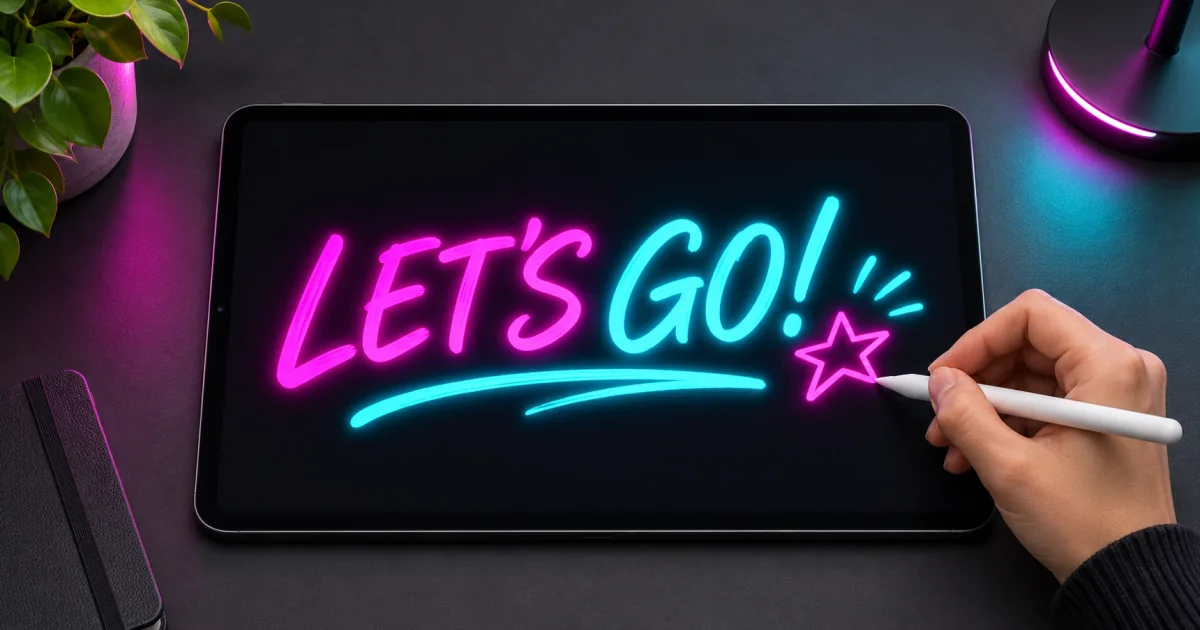
To create a glowing concert sign on your iPad, open a landscape canvas in “Freezon Banner”, pair a dark background with a bright pen color, sketch "LET'S GO!" using short strokes and comfortable margins, apply the free Neon effect, and show it full screen. If you use a smaller screen, iPhone also supports finger drawing.
Workspace Setup and Drawing Input
Freezon Banner gives you a drawing workspace in landscape or portrait orientation, with Solid Pen and Pencil available for free. Landscape fits wider concert phrases cleanly, and picking a thick pen width with Solid Pen gives your letters bold lines that stay readable in a group.
You do not need a stylus to draw a clear sign, since both iPad and iPhone support finger drawing. On a compatible iPad, an Apple Pencil is useful when you want steadier control for sharp corners, the apostrophe, or compact shapes like a star, though your finger handles large lettering well.
Walkthrough: Drawing "LET'S GO!" With a Star
A concert sign for a group works best with open edges instead of decorative borders. Wide margins keep letters from crowding the screen perimeter so friends can spot your message right away.
- Set landscape and contrast: Choose landscape orientation, pair a dark background with a bright pen color, and pick a thick Solid Pen width so strokes stand out at a distance.
- Draw with short strokes: Leave comfortable margins around the edges, and write "LET'S GO!" in uppercase using short, steady strokes rather than fast loops, with space between letters.
- Add one star: Sketch a single star beside the exclamation point inside your margins, leaving room around the letters so the words stay easy to read.
- Fix uneven lines: Use undo to step back from a stray stroke, redo if you undo too far, or tidy overlapping edges with the eraser.
- Apply the Neon effect: Switch from standard to the free whole-canvas Neon effect so the whole drawing glows. Pick this free effect rather than the Neon Tube brush, which is a Pro specialty brush.
- Show it full screen: Once your drawing is finished and not blank, display it full screen at its original canvas aspect ratio, and save it to Favorites on your device. Freezon Banner is built for showing a live sign rather than exporting an image or video.
Screenshots show the English interface. The app supports multiple languages.
Composition Choices for Group Legibility
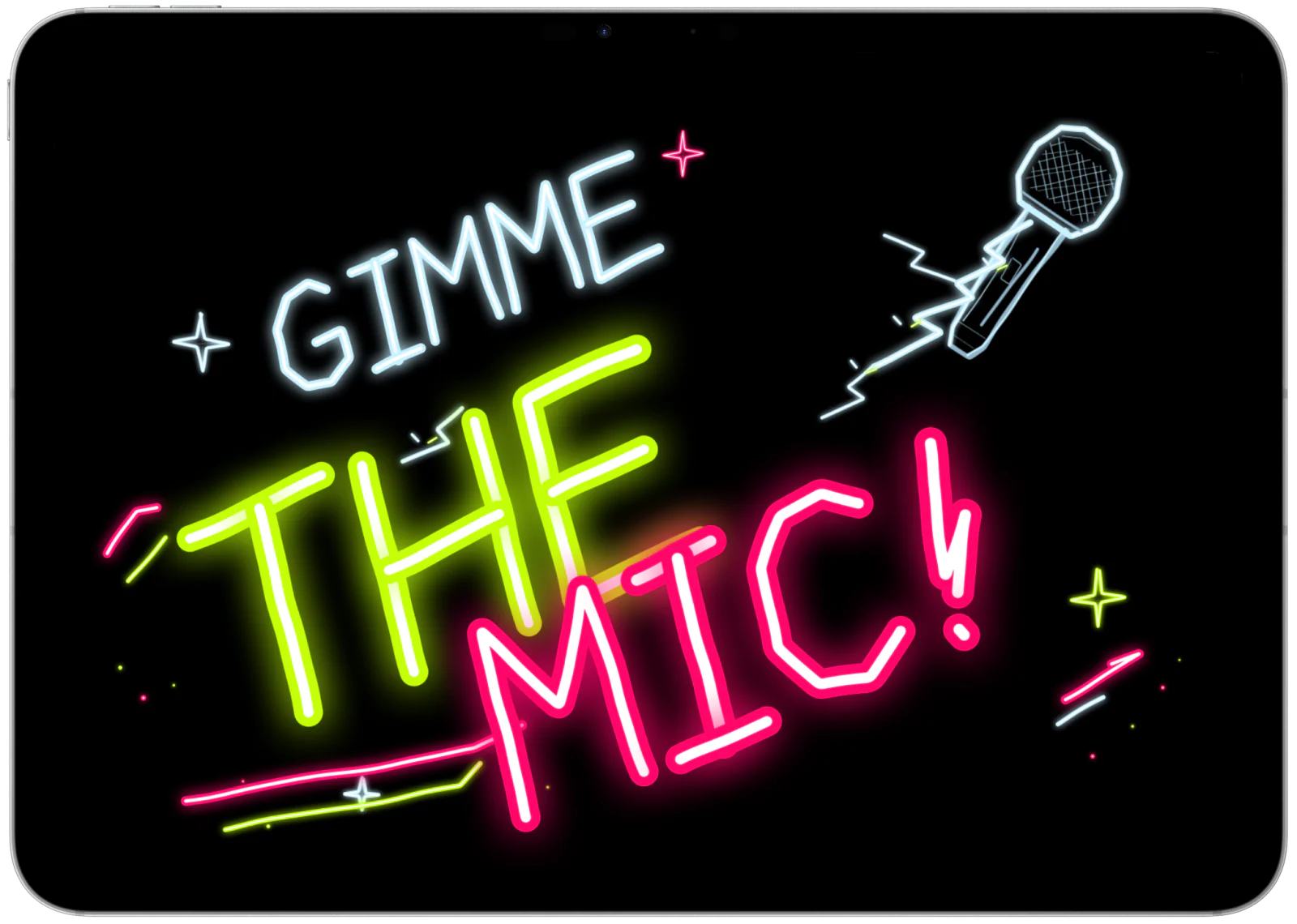
Thoughtful layout choices help a group read your screen from different angles. Bold letterforms and open space let your words fill the canvas cleanly.
- Single line plus star vs. stacked words: Keep "LET'S GO!" on one landscape line with a star for balanced spacing, stack two short words like "LET'S" over "GO!" on separate lines, or center one word like "ENCORE!" with a thicker pen width for taller letters.
- One bright color vs. outer frames: Pair one bright pen color with a dark background and clean margins rather than drawing outer frames that shrink readable space.
- Portrait for upright holding: Switch to portrait orientation when holding your iPad upright feels easier, stacking a short two-word phrase vertically with wide margins so the letters stay large.
