 Freezon
How to Turn an iPad into a Full-Screen LED Sign
Turn an iPad into a clean, full-screen LED sign or scrolling banner for reception desks and event check-ins with Freezon Banner.
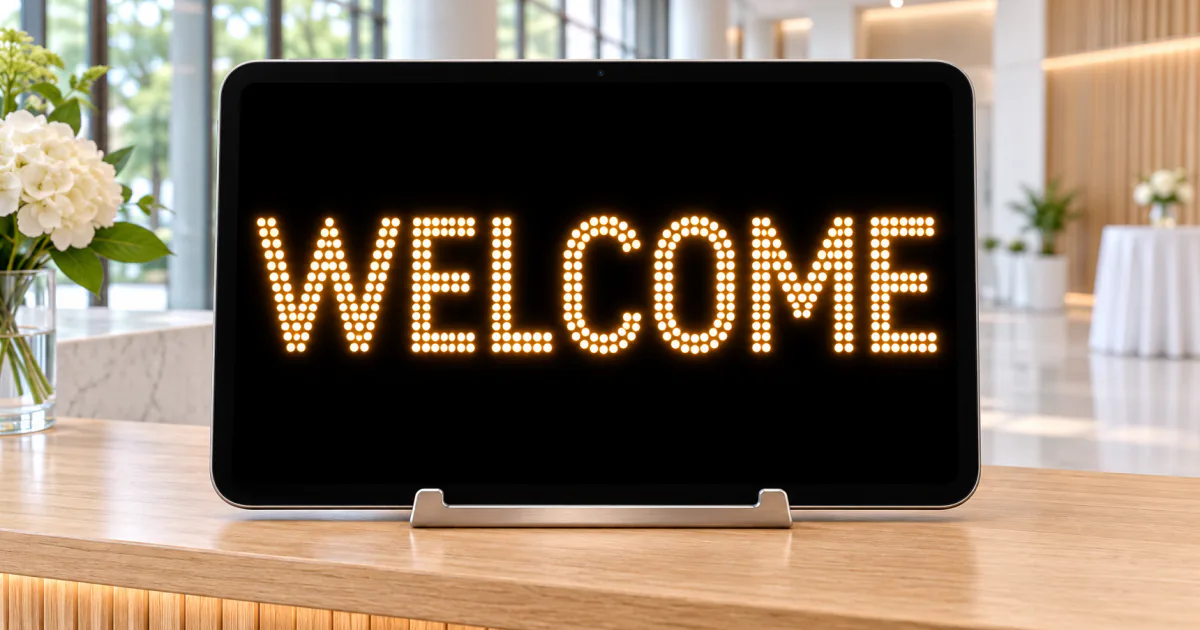
To turn an iPad into a full-screen LED sign, enter your message in “Freezon Banner”, choose static or scrolling text, review the live preview in your desired orientation, and tap to start the full-screen presentation. The app conceals editing controls to display clean, dedicated signage.
While Freezon Banner supports both iPad and iPhone, an iPad is especially suited for fixed positions at temporary reception desks, event check-in tables, and venue entrances. Instead of a handheld party banner, a stationary iPad functions as an eye-level welcome board, directional pointer, or scrolling announcement display for arriving guests.
Setting Up Your Display in Freezon Banner
The app's create view provides a live preview as you type, allowing you to format your sign before presenting:
- Choose orientation: Turn the iPad to landscape or portrait. On a desk or check-in counter, landscape orientation provides a wide canvas for horizontal text and arrows. The app adapts directly to your device orientation.
- Enter your message: Type the essential information visitors need upon arrival.
- Select static or scrolling: Keep short notices stationary or let longer updates scroll continuously.
- Style text and background: Select distinct colors for text and background to maintain strong contrast. Choose standard text or a dot-style LED effect.
- Start full-screen presentation: Tap into full-screen mode to hide all editor controls and brand decoration. Tap the screen at any point to show or hide controls when updating text.
Creating a Static Welcome Sign: WELCOME
Static signs provide immediate recognition when visitors approach a desk.
To create a greeting sign, type WELCOME into the editor. If you need a second line, add a line break and type CHECK-IN HERE.
Freezon Banner offers automatic and manual font sizing for static text. If your message does not fit cleanly:
- Shorten phrasing to core words.
- Add line breaks to balance text across lines.
- Decrease the font size manually until everything fits the screen.
- Switch to scrolling mode if the message requires more space than a single screen allows.
Setting Up Scrolling Text: CHECK-IN → ROOM 2
When your notice includes directions or sequential instructions, scrolling text on iPad presents the complete message without crowding the screen.
For an event room announcement, enter CHECK-IN → ROOM 2. Configure the movement using the scrolling settings:
- Direction: Set scrolling to move left, right, up, or down. Leftward horizontal scrolling is standard for English text and arrows.
- Speed: Adjust the speed control in the live preview. Set a pace that allows walking visitors to read the full destination in one pass.
- Font sizing: Use automatic sizing to maximize letter height, or set manual sizing to match adjacent signs.
Static vs. Scrolling: Choosing the Right Format
Match the display format to how guests move past your desk:
- Static format: Best suited for instant recognition at arrival points, such as WELCOME, allowing visitors to read the complete message without waiting for a scroll cycle.
- Scrolling format: Best suited for directional cues and multi-part updates, such as CHECK-IN → ROOM 2, displaying longer instructions and arrows at large, readable letter sizes.
Testing Readability from the Visitor's Path
Physical placement directly affects how easily visitors read your iPad LED sign:
- Mount on a stable stand: Place the iPad on a secure stand at counter height, angled toward incoming foot traffic.
- Test viewing distance: Walk back to the entrance or hallway where guests first view the desk. Confirm that letters remain legible.
- Adjust for glare and contrast: Inspect the screen under ambient venue lighting. If overhead fixtures reflect on the glass, tilt the stand forward. Use high-contrast color combinations, such as bright text on a dark background.
- Pace the scroll: Walk toward the desk at normal walking speed to verify that scrolling text completes its key phrase before you pass.
Frequently Asked Questions
Can I prepare and run the sign offline?
Yes. The core text editor and full-screen presentation work offline without an account sign-up.
Can I display full-screen text on iPad in portrait orientation?
Yes. The app adapts to portrait and landscape. Rotate the iPad on your stand, check the live preview, and tap to enter full-screen mode.
Will the iPad screen sleep during an event?
Freezon Banner keeps the screen awake while full-screen presentation is in the foreground. For longer events, consider connecting the iPad to a power adapter or an external battery pack.
