 Freezon
How to Show Big Text Full Screen on iPhone or iPad
Create a short, static message and display it full screen on your iPhone or iPad.
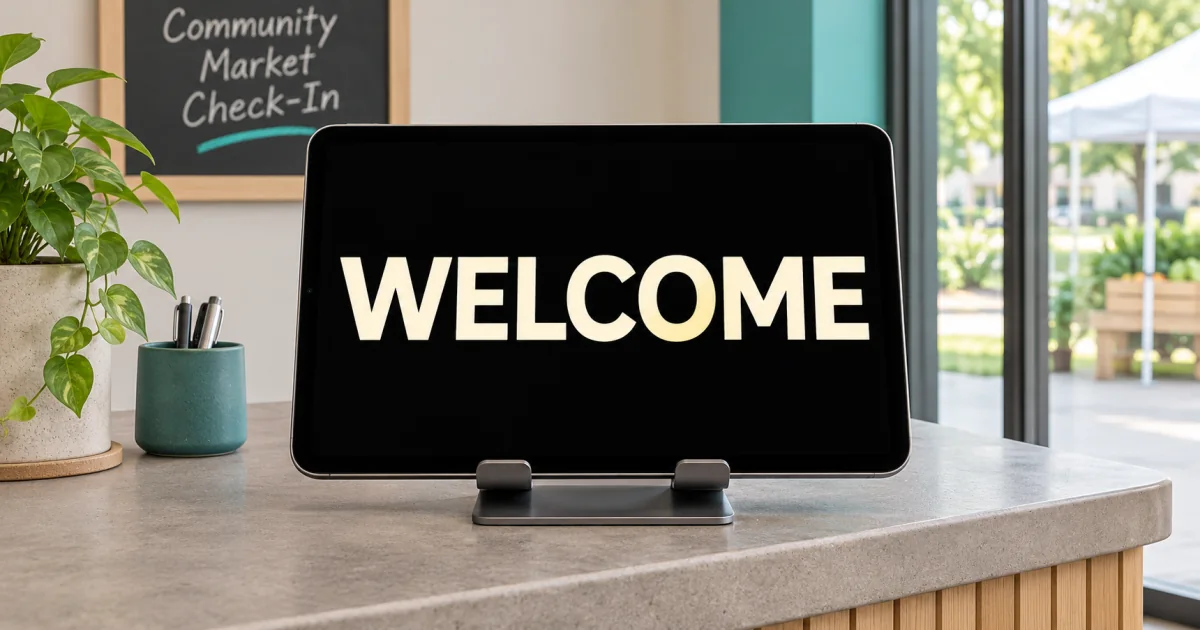
To display one custom message in large, still letters on an iPhone or iPad—rather than enlarging the system interface, streaming subtitles, or making a concert marquee—use “Freezon Banner” in Static mode. Enter a short phrase, pick automatic or manual text size along with high-contrast colors, preview your layout, and present it full screen. Core composing and displaying work offline with no account required.
Everyday Uses for Each Device
Choosing between an iPhone and an iPad comes down to how you plan to present the sign. Each device suits a different everyday situation depending on whether you hold it up or set it down, and how large a screen you want.
- Held-up iPhone: Display a friend's name in clear letters when you want someone to spot your screen quickly. Depending on the app's setting, the iPhone text display may auto-rotate to landscape.
- Landscape iPad: Because an iPad offers a larger screen, turning it to landscape works well for a simple meeting spot or table sign that keeps a brief label easy to read.
Steps to Build and Present a Sign
Setting up a message in Freezon Banner takes only a few straightforward steps. Once you open the app, follow this sequence to create and show your sign:
- Use Static mode and enter a short message. Keeping your wording brief matters, because longer text may not fit on a single screen.
- Choose automatic or manual text size to suit your wording and screen.
- Choose text and background colors with strong contrast, such as bright lettering on a dark background.
- Preview your layout to make sure the text looks clear and uncrowded.
- Show the sign full screen; the app keeps the display awake while presenting in the foreground.
Fit and Quick Readability Check
Before you hold up your iPhone or set down your iPad, review the preview for fit, contrast, and orientation. Single-screen static mode can preserve line breaks when enough space is available, so a quick visual check ensures the message looks balanced rather than crowded.
- Keep wording concise: Shorter messages leave room for bigger lettering on one screen.
- Confirm line breaks: Verify in the preview that any deliberate line breaks stay intact within the available space.
- Check color contrast: Make sure your text and background colors contrast sharply so letters remain clear at a glance.
- Review iPhone orientation: Confirm the app's setting ahead of time if you expect the text display to auto-rotate to landscape.
Extended Uses Beyond Static Text
Freezon Banner's Static mode is built to do one job well: display a single, still message cleanly on your screen. For everyday moments like showing a friend's name or setting out a table sign, that straightforward format is all you need. When an occasion calls for more than a basic static sign, dedicated concert and iPad reception guides cover those extended uses.
