 Freezon
How to Share an LED Text Banner Between iPhone and iPad
Learn how to share LED text banners between iPhone and iPad using share codes or banner files so your entire group has matching designs.
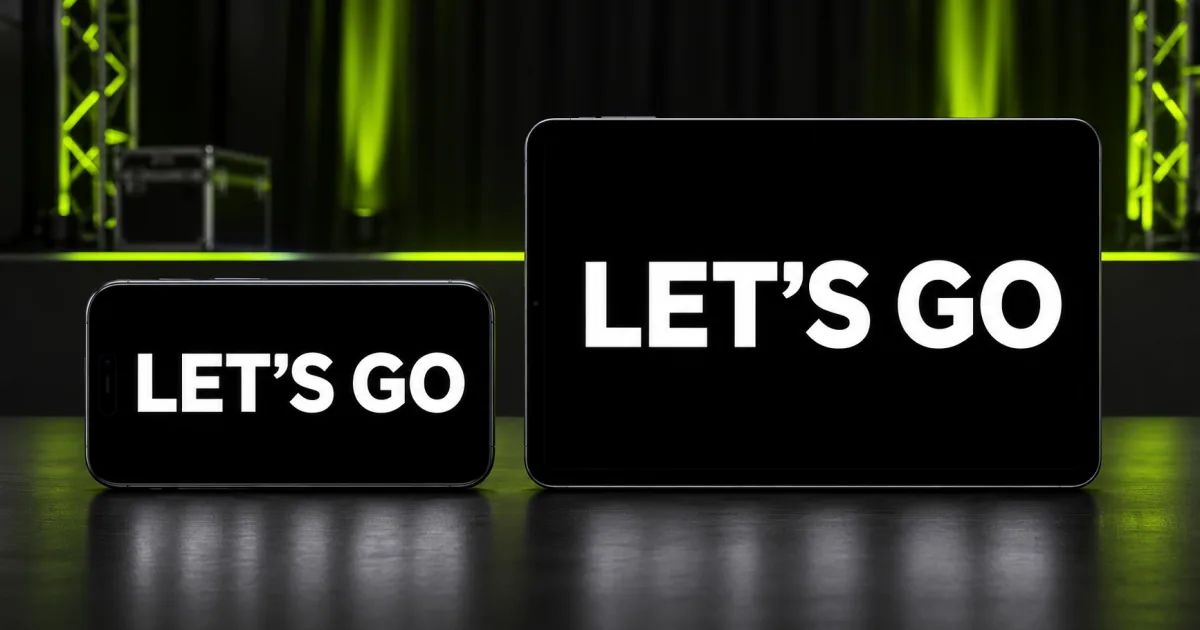
If your group is bringing signs to a concert, make one design and share it before you leave. With “Freezon Banner”, you can send a short LED message such as “LET’S GO” as a share code, or send a banner file for longer text. Friends can open the design on an iPhone or iPad, preview it, and edit their own copy.
Transferring Configurations Instead of Screens
The shared setup carries the words and their layout, font, effects, and colors. For example, you can pick white lettering on black, set a comfortable scrolling speed, then send that design to the group. Everyone starts from the same setup and can adjust the text or styling on their own device.
Choosing Between a Copied Code and a Configuration File
Freezon Banner provides two practical sharing methods based on the length of your sign text:
- Share code: If the sign text is 50 characters or shorter, tap Copy Share Code and paste the code into a message. The limit applies to your sign text.
- Banner file: For longer text, tap Share Banner File and send the .freezonbanner attachment through the system share sheet. You can also use the file for a short sign if you prefer an attachment.
Sending the Sign from the Active Editor or Saved Items
In the text editor, tap the share icon next to Load Banner and choose the code or file. If you already made the design, you can share a text banner from your favorites or recent items. Preview the sign before sending so your group starts with the intended words and colors.
Importing and Previewing on Companion Devices
To load the shared sign, the recipient must also have Freezon Banner installed on their iPhone or iPad. The recipient can bring the setup into the app using several supported methods:
Check the words and the look of the sign in the preview, then tap Use Banner to load it into the text editor.
- For a code: Open Load Banner, paste the code and tap Preview.
- For a file: Open Load Banner and tap Choose Banner File, or open the attachment from the other app in Freezon Banner.
Protecting Existing Drafts and Handling Pro Styles
Keep two important operational details in mind before confirming an import:
- Protecting Current Drafts: Loading an incoming sign replaces the current text draft in the editor. If the current draft is worth keeping, save it as a favorite first before importing.
- Handling Pro Styles: Receiving a configuration does not unlock Pro for the recipient. If everyone in your group needs the same result without Pro, choose free styles when creating and sharing the sign.
Preparing and Testing Companion Devices Before the Event
Send the code or file ahead of time, then have friends open the sign full screen on the devices they plan to bring. If one person has an iPad and another has an iPhone, both can check how the words fit on their own screen. A short phrase gives you room for bigger letters, which matters when you hold the sign up across a crowd.
