 Freezon
How to Keep iPhone Photos Off a Shared Family iPad
Turn off iCloud Photos on the shared iPad, or keep syncing and store selected iPhone photos separately.
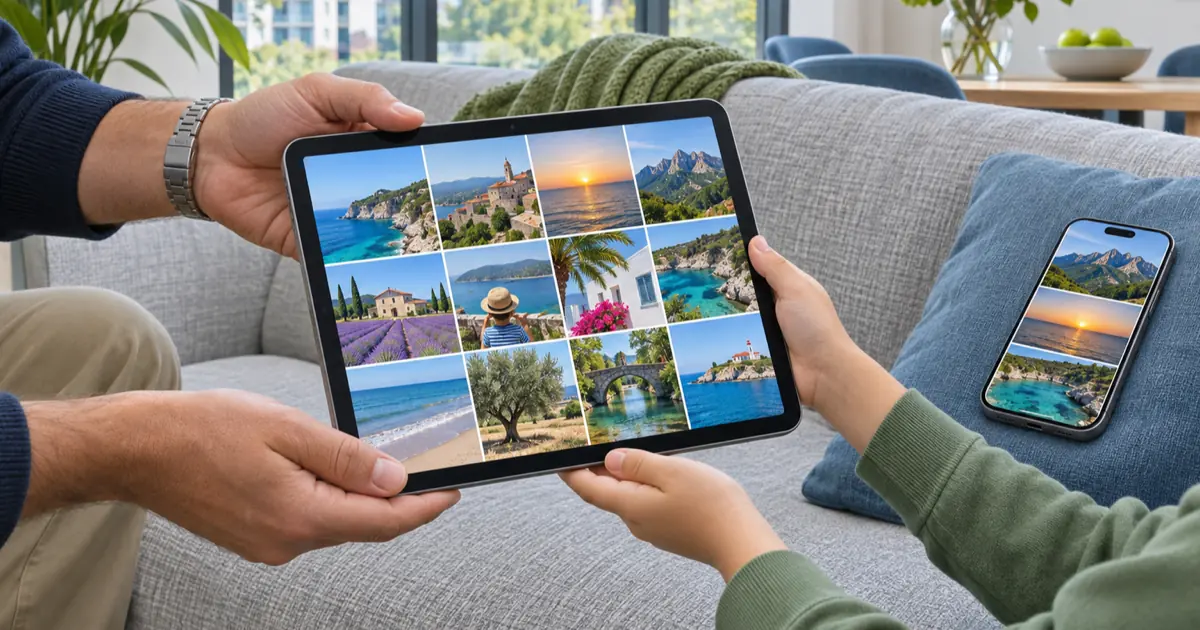
It is a familiar household scene: you hand the family iPad to your child to watch cartoons, only to realize that personal iPhone snapshots—from medical documents to gift idea screenshots—are visible in the Photos app. If both devices use the same Apple Account and have iCloud Photos turned on, they show the same photo library. Being in a Family Sharing group does not automatically share your personal photos, so check the account and iCloud Photos settings on the iPad first.
You do not need to turn off iCloud Photos everywhere to solve this. You can take the synced library off just the shared iPad, or keep syncing and set aside only the photos you want to keep private.
Path 1: Turn Off Photo Syncing on the Shared iPad
If the shared iPad does not need access to your personal camera roll, the cleanest solution is to disconnect photo syncing on that device. This keeps your iPhone syncing normally with iCloud while letting you remove the synced copies from the family tablet.
1. On the shared iPad, open Settings and tap [your name].
2. Tap iCloud, then tap Photos.
3. Turn off Sync this iPad.
4. If prompted, select Remove from iPad to clear the synced cloud photos from the tablet.
Make this change on the iPad only. Leave iCloud Photos enabled on your account and your iPhone.
Selecting "Remove from iPad" clears synced cloud photos from the tablet, though copies you saved separately outside Apple Photos will remain. For official Apple steps, see Apple’s guides to Set up and use iCloud Photos and Turn off iCloud Photos.
Path 2: Keep Selected Photos Private While Leaving Sync Active
If you still want the family iPad to display shared albums and vacation pictures, turning off sync completely may not be practical. Keep in mind that Apple's built-in "Hidden" album is not a separate vault; hiding photos does not take them out of the library that iCloud Photos syncs.
To keep specific pictures—such as a gift idea screenshot or personal receipt—off the shared iPad, you can store them in “Freezon”. Freezon imports selected photos and videos, encrypts them locally on your iPhone, and works offline without ads or automated cross-device syncing.
Here is the recommended workflow:
1. Import photos into Freezon: Open Freezon on your iPhone and import the specific photos you want to protect.
2. Check the imported copies: View each imported photo or video inside Freezon to confirm it transferred intact.
3. Make an optional backup: If you have no other copy of these photos, create an encrypted backup in Freezon via the Files app. You can safely save this backup file to iCloud Drive; it remains an independent encrypted file, completely separate from iCloud Photos.
4. Delete originals in Apple Photos: Delete the originals from Apple Photos on your iPhone and confirm the system deletion prompt.
5. Check the iPad after syncing: Once iCloud syncs over your network, verify on the iPad that the photos no longer appear in its library.
When you delete an item from Apple Photos, iOS keeps it in the Recently Deleted album for up to 30 days before permanent removal. If you need immediate privacy on the shared iPad, you can open Recently Deleted and remove those specific items, without needing to empty the entire album.
For detailed migration steps, read our guide on how to Move private photos out of Apple Photos.
Want to keep a few photos on your iPhone and out of the family photo library? Try Freezon.
