 Freezon
How to Move Private Photos from Apple Photos into an iPhone Photo Vault
Learn how to move photos out of Apple Photos into Freezon, verify imported media in encrypted storage, and safely manage original files on your iPhone.
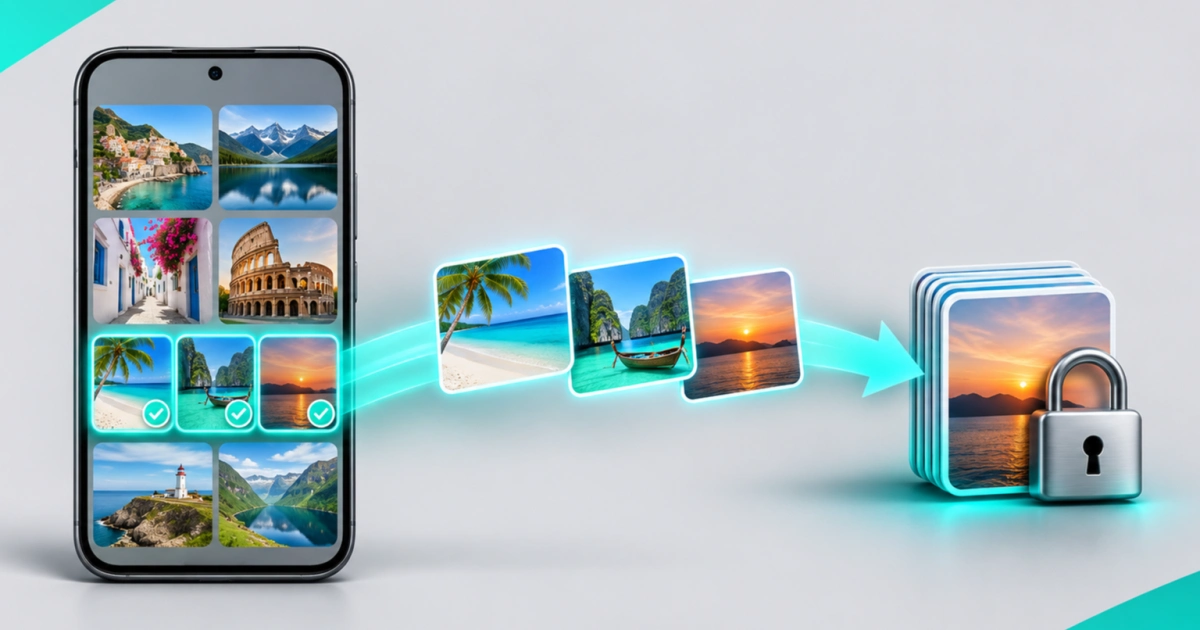
To remove personal pictures from your main camera roll and store them behind an independent password, you can move them into an encrypted photo vault on your iPhone. “Freezon” keeps an encrypted copy stored locally on your device, giving you a safe personal archive without sending files to the cloud.
The workflow is simple: import your chosen photos into the vault, verify that the encrypted copy opens and displays properly, and after verifying, optionally confirm Apple's system prompt only if you want the originals removed from your photo library.
Step 1: Start with a Small Test Batch
Before transferring important personal media, test the workflow using a small batch of two or three non-sensitive photos or a short video clip.
- Open Freezon and start a new import.
- When the system permission prompt appears, select Select Photos... to use limited Photos access. This restricts Freezon’s visibility strictly to the items you choose, keeping the rest of your camera roll private.
- Select your test items, choose to keep originals for this test batch, and complete the import into Freezon's local encrypted storage.
Step 2: Open and Verify Media Inside Freezon
Always confirm that your imported media is intact before deleting any originals from your device:
Verifying your files first guarantees that your media is safely stored in local encrypted storage before you make any changes to Apple Photos.
- Open Freezon and enter your independent password.
- Tap each newly imported photo to verify that the image renders completely.
- Play videos from start to finish to ensure playback is smooth and complete.
Step 3: Choose an Actionable Branch for Original Photos
Once your media is verified in Freezon, choose how to handle the original files in Apple Photos based on your workflow:
Because Apple Photos protects your library against accidental deletions, iOS requires a separate system confirmation before any app can delete media. Confirming this dialog removes the originals from your primary library view.
- Branch A: Remove Originals: When moving private photos entirely out of your main camera roll. For the batch you kept and verified, open Settings → Clean up originals in Freezon and select the items to clean up. When iOS displays the system confirmation dialog, tap Delete.
- Branch B: Keep Originals: When you want an encrypted copy but still need the files for shared albums or other apps. Leave the originals in Apple Photos. To clean them up later, use Settings → Clean up originals in Freezon and select the items to clean up.
Step 4: Manage Apple Photos Recently Deleted
Deleting originals through Freezon does not permanently erase them from your iPhone immediately. Apple Photos treats deletion as an independent system process:
- When you approve the removal prompt, Apple Photos moves the original files to its Recently Deleted album.
- Under standard Apple Photos rules, normal deletions remain in Recently Deleted for up to 30 days unless you remove them manually.
- To remove the files from your device immediately, open Apple Photos, find Recently Deleted under Utilities, authenticate, and select Delete. For complete details on system deletion rules, review the official Apple Support guide.
- Deleting originals from Apple Photos does not erase all existing or shared copies.
Frequently Asked Questions
Can I import photos without granting access to my entire library?
Yes. Freezon supports limited Photos access, allowing you to select only the specific photos and videos you want to import while keeping the rest of your library private.
What should I do if I chose to keep originals but want to remove them later?
Open Freezon and navigate to Settings → Clean up originals. This feature identifies imported media whose originals were kept and prompts the Apple system deletion dialog for a later cleanup pass.
Why does Apple Photos ask for confirmation when removing originals?
Apple Photos requires a separate system confirmation to protect your library from unintended deletions, ensuring that no file is removed without your direct consent.
